Facebook Graph Search - Basics you should know

In this very article, you will learn how to enable Facebook graph search and how to experiment its various features.
Graph search allows us to find things very quick than before, but don't think it as Google search engine,. because Google search engine is for all webpages in world wide web, but graph search is mainly focusing on search inside Facebook. that is the difference between Facebook graph search and Google search.
OK, lets get started. For that, if you have not yet enabled graph search functionality in your Facebook account, its the time to enable it.
For that, Go to This link.
https://www.facebook.com/about/graphsearch (opens in a new window).
Don't close this page now, here is the next steps to make it to work.
The new opened page will be titled as "Introducing Graph Search".
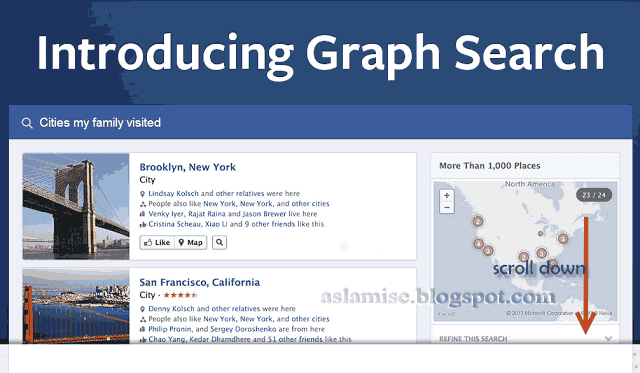
Scroll down. then you can see a live demo for graph search as a slide show.
you can click on "Try a search" link to see a demo of graph search that related to you.
The main advantage of Facebook graph search they claim that it will be unique for each user. and really it is.
Other people will see different results for the same search.
NOW, to start using graph search, Click on "Try Graph Search" button .

It will take you to your Facebook homepage where graph search is enabled.
If it opens a dialogue box which saying "Thanks for signing up for our beta . When graph search is ready you will see an announcement on Facebook and you can switch to the new experience."
Then you'll have to wait a few days to see that announcement on your Facebook homepage.
After that announcement appears, you can switch to new graph search.
From now, your Facebook homepages top blue bar will be like this.

When you click on that field, it will be showing up some suggestions like,
- My friends
- Photos of my friends
- Restaurants nearby
- games my friends play
- Music my friends like
- Photos i have liked
Click on any suggestion, or write your own query, here we are going to search for my friends.
So it will be showing all your friends as a grid list and also with some advanced search controls.
If you are having problem then click on this link, as it will be showing your friends
https://www.facebook.com/search/me/friends
At the right side of the same page,there will be more advanced tools to refine your Facebook graph search.
- Gender
- Relationship
- Employer
- Current City
- Hometown
- School
- Friendship
If you select Male from gender option, this search results will only include male friends.
and if you select female from gender option, it will only include female friends.
Now lets come to Relationship
- Single
- In a Relationship
- In an Open Relationship
- Married
- Engaged
- It's Complicated
- Widowed
- Separated
- Divorced
- In a Civil Union
- In a Domestic Partnership
Selecting each will give you result of the friends who has the selected combination.
These Filters are categorized as.
- Basic
- Work and Education
- Likes and interests
That is all for basics of graph search of facebook
As default, graph search will return results as a list.
if you want to see results as grid, you can switch to that by clicking on "View Grid" option on top right side of the same page.
or you can set it by going this URL
https://www.facebook.com/search/me/friends?source=view&view=grid
and to go back to list view, you can click on list view or by going this url.
https://www.facebook.com/search/me/friends?source=view&view=list
If you see the button "Join waiting list" instead of "Try Graph search" it means that you have to wait few more days to get in to. So click and wait, when the time comes, Facebook will notify about this.
Stay updated and Share your thought in comments. More detailed articles are coming with tricks with graph search.