Setup Open graph for blogger effectively

What is open graph?

Definition for opengraph(from wiki):
The Open Graph protocol enables developers to integrate their pages into the social graph. These pages gain the functionality of other graph objects including profile links and stream updates for connected users.The implications that the Open Graph may have on the web as a whole relate significantly to the idea of search engines. While currently Google still attracts more traffic than any other website, Facebook is a close second. Even without a good internal search engine, Facebook already drives more traffic for some searches, specifically social searches, than Google itself.And in attempting to link Facebook with the rest of the web, the Open Graph is creating Face book's own extensive and highly interactive version of a search engine. Web pages are turned into Open Graph Objects by adding metadata.
As you may already know, there are already meta tags that defines our content, title, description, keyword, and so on. then why opengraph meta tags?
as facebook being the fastest growing social community, we have  to look at it, and keep our standards to go with the current trends.
open graph is applied everywhere today. in many websites, and in their product pages, in articles, everywhere!
When it get shared, it can visible like a story in facebook timeline and news feed with the details , pictures and content types what the user have shared.

Blogger doesn't automatically create opengraph tag for your blog. maybe that may happen in feature.. but blogger does generate standard meta tags for each blog this time when i write this article,if we include below line in our blog's head.

<b:include data='blog' name='all-head-content'/>

Now , we have to tweak our blogger template to generate opengraph tags for each page.
Before that you should be knowing,

Why is it important?

You may thinking why is it important to add opengraph because there are already meta tags  which define our description, title, keyword etc.
so here is answer for your question.
Assume you own a blogger blog. and you have many articles, pages,and products in your blog.
and you also have a share button ,like button, or a comment plugin that you obtained from facebook.
Someone share your article.
it Shows on their timeline and other friend's feed.
if you have no opengraph meta tag assigned, it will likely jut an writing that make no attraction and just a url.
and When a user likes your article, it will show as a url.
Here we need to apply opengraph tags.
What if someone sees a story in feed, someone have something, followed by a link and article picture, and a small description with it? yes. he will be attracted, and his moue cursor moves to that, and click the story.

How can you set up opengraph in your blog effectively?

You will be surprised if you come to know the full features blogger gives to a blogger.(if you understand the full feature)
we can automate the process of generating opengraph tags for each and every post in our blog, each page in our blog, or in the very homepage of our blog. we can do it all once and we have option to do that in simple.
This is how you can setup opengraph for blogger.

Here is Open graph tags for blogger.
Just put this between your <head>` and `</head> tags.

    <b:if cond='data:blog.pageType == &quot;item&quot;'>
        <meta content='article' property='og:type'/>
        <meta expr:content='data:blog.title' property='og:site_name'/>
        <meta expr:content='data:blog.pageName' property='og:title'/>
        <b:if cond='data:blog.postImageThumbnailUrl'>
            <meta expr:content='data:blog.postImageThumbnailUrl' property='og:image'/>
        </b:if>
    <b:else/>
        <meta expr:content='data:blog.title' property='og:title'/>
        <meta content='website' property='og:type'/>
    </b:if>
    <meta expr:content='&quot;en_US&quot;' property='og:locale'/>
    <meta expr:content='data:blog.canonicalUrl' property='og:url'/>


Remember, og:image will only shown if your post contains an image.
Or if you want to show your site logo here if there is no picture in post, you could call an alternate og:image that contains your logo!
Just after all meta tags in your template add below code.
<meta expr:content='http://URL_TO_LOGO.jpg' property='og:image'/>' 

Replace URL_TO_LOGO with the URL to your logo or the default image that to be shown.

Troubleshooting

After done with above code, try to share any of your blog' page .
if you don't know how,below is the way to share a webpage in Facebook.

If you are not able to see any change after adding above code to your blogger template,
Go to  https://developers.facebook.com/tools/debug
and type your URL to post, in the field and click on debug, it will refresh cache in Facebook and will reload your post detail from scratch.

Its a pleasing thing that to hear from you about this article. ;)
Recommended link : http://ogp.me

Read Article →

Facebook comments and like count problem in blogger blogspot - Solved


After blogger started applying Country Redirection in blogs, it is being a problem that Facebook comments and likes are not working properly because each visitor gets different result depends on current blog address. for example, my blog address is http://aslamise.blogspot.com , and when i visit that blog, it becomes http://aslamise.blogspot.in , because i visit from India , this is called country specified redirection.

BUT, we can overcome this problem of Facebook comments or like count problem or any other problem which caused by the redirection, by setting data:blog canonical URL in Facebook plugins

The solution is to tweak your plugin's code and relace data:blog.Url with data:blog.canonicalUrl .
So that it will always point to .com version of your blog.

Here is the Facebook comment plugin code many blogger users,

<b:if cond='data:blog.pageType == &quot;item&quot;'>
<div class='fb-comments' data-num-posts='20' data-width='610px' expr:data-href='data:blog.Url'/>
</b:if>


Perfect one is below one.

<b:if cond='data:blog.pageType == &quot;item&quot;'>
<div class='fb-comments' data-num-posts='20' data-width='610px' expr:data-href='data:blog.canonicalUrl'/>
</b:if>


We Change  the expr:data-href='data:blog.Url' to expr:data-href='data:blog.canonicalUrl'

Facebook like plugin also need this to Work perfectly in blogger blog.

Enjoy blogging. if you have any doubts , feel free to ask in comments.

Or

If you want to know how to replace blogger comments with Facebook comments plugin, Go here


Read Article →

How to replace Blogger Comments with facebook Comment plugin In blog/website

Here is how you can replace blogger comments with Facebook Comments in blogger blogspot.


Before Proceed further, please note that
If you use Facebook comments instead of blogger comments,
  • You will not get email notifications when someone comment on your post.
  • You will not be able to track spam messages in comments with blogger service.
  • Comments you will receive, will not be added to your blog's comments section, but only in Facebook's iframe.

Still,If you want to use this, here we go.

First Step:

First step is to make an app in Facebook.
You should be an app developer to use Facebook comments in your website or blog or wherever you want.

To create a facebook app,
Go to below address.
https://developers.facebook.com/apps
If you are not yet a developer, register for a developer account.

Click on the button named "Create New app"

It will pop up a box. type your app name there. whatever it is. you can also name it as your blogs name.


Click next button, it will ask you to type captcha as Facebook requires that to prevent spamming.

Your app will be created and you will be taken  to a new page where you can see basic settings of your app.


Display name will be the same name you typed.
Now , type blogspot.com,blogspot.[your country specified domain extension.  example:if you are in India it will be blogspot.in].
You can complete the domain name list with country specified domain  extensions as possible.

Next, you can see a field named sandbox mode.

If Sandbox mode enabled, only developers can use the app. so disable sandbox mode. for that check the radio button named "disabled"

Now, come down and click on website with Facebook login, and fill it with http://yourblogname.blogspot.com

Mine will be http://aslamise.blogspot.com

Now click on save

You have just made your Facebook app to use Facebook's plugins.

Second Step:

Get code for Facebook Comments

Go to
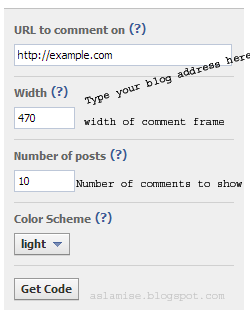
http://developers.facebook.com/docs/reference/plugins/comments/


Grab your code from there.

<div id="fb-root"></div>
<script>(function(d, s, id) {
  var js, fjs = d.getElementsByTagName(s)[0];
  if (d.getElementById(id)) return;
  js = d.createElement(s); js.id = id;
  js.src = "//connect.facebook.net/en_US/all.js#xfbml=1&appId=YOUR_APP_ID";
  fjs.parentNode.insertBefore(js, fjs);
}(document, 'script', 'facebook-jssdk'));</script>

You have to XML encode code between script blocks to get it work on blogger,else it will show an error.
After XML encoded ,It will look like below.


<div id="fb-root"></div>
<script>
(function(d, s, id) {
  var js, fjs = d.getElementsByTagName(s)[0];
  if (d.getElementById(id)) return;
  js = d.createElement(s); js.id = id;
  js.src = &quot;//connect.facebook.net/en_US/all.js#xfbml=1&amp;appId=YOUR_APP_ID&quot;;
  fjs.parentNode.insertBefore(js, fjs);
}(document, &#39;script&#39;, &#39;facebook-jssdk&#39;));
</script>


(You can just copy paste this to your template just after the <body> tag and replace YOUR_APP_ID with your app id of the app you created.)

Save your template for now.
Now click Ctrl+F and search <b:includable id='postQuickEdit' var='post'>
Just before that you can see </b:includable>.
Now lets call our comment plugin here.

So Copy paste this just before that </b:includable>.


        <b:if cond='data:blog.pageType == &quot;item&quot;'>
<div class='fb-comments' data-num-posts='20' data-width='610px' expr:data-href='data:blog.canonicalUrl'/>
        </b:if>


Change the width of comment box as per your template's width.

Add <meta content='YOUR-FACEBOOK-ID' property='fb:admins'/> between your  <head></head> tags. So we can moderate comments in our blog.
We have just enabled Facebook comments plugin in your blog.

Now, the last step. 
we have to hide the real blogger comments plugin from our blog.

for that, go to your blog's dashboard.

Settings -> Posts and comments ->

Under Comments Section, you can see an option named Comments Location

Select Hide.

Note: Selecting Hide does not delete existing comments.

Then click save settings.


You have just replaced  your blog's default comment system with Facebook's comment system.
Feel free to ask if you are experiencing any problem with the process. your comments are always welcome :)


Read Article →

Facebook Graph Search - Basics you should know


In this very article, you will learn how to enable Facebook graph search and how to experiment its various features.

Graph search allows us to find things very quick than before, but don't think it as Google search engine,. because Google search engine is for all webpages in world wide web, but graph search is mainly focusing on search inside Facebook. that is the difference between Facebook graph search  and Google search.

OK, lets get started. For that, if you have not yet enabled graph search functionality in your Facebook account, its the time to enable it.

For that, Go to This link.
https://www.facebook.com/about/graphsearch    (opens in a new window).

Don't close this page now, here is the next steps to make it to work.
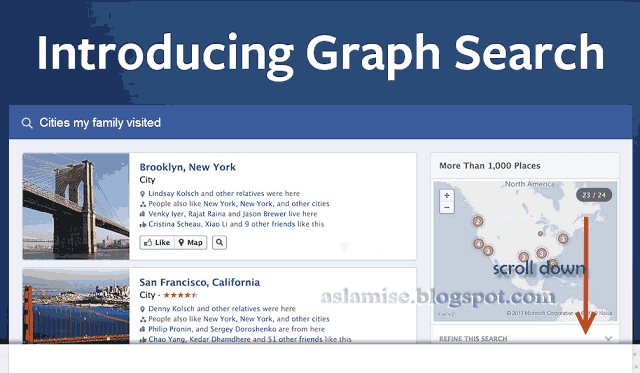
The new opened page will be titled as "Introducing Graph Search".

Scroll down. then you can see a live demo for graph search as a slide show.

you can click on "Try a search" link to see a demo of graph search that related to you.

The main advantage of Facebook graph search they claim that it will be unique for each user. and really it is.
Other people will see different results for the same search.

NOW, to start using graph search, Click on "Try Graph Search" button .


It will take you to your Facebook homepage where graph search is enabled.

If it opens a dialogue box which saying "Thanks for signing up for our beta . When graph search is ready you will see an announcement on Facebook and you can switch to the new experience."
Then you'll have to wait a few days to see that announcement on your Facebook homepage.
After that announcement appears, you can switch to new graph search.

From now, your Facebook homepages top blue bar will be like this.

When you click on that field, it will be showing up some suggestions like,

  • My friends
  • Photos of my friends
  • Restaurants nearby
  • games my friends play
  • Music my friends like
  • Photos i have liked


Click on any suggestion, or write your own query, here we are going to search for my friends.

So it will be showing all your friends as a grid list and also with some advanced search controls.

If you are having problem then click on this link, as it will be showing your friends

https://www.facebook.com/search/me/friends

At the right side of the same page,there will be more advanced tools to refine your Facebook graph search.


  • Gender
  • Relationship
  • Employer
  • Current City
  • Hometown
  • School
  • Friendship


If you select Male from gender option, this search results will only include male friends.
and if you select female from gender option, it will only include female friends.


Now lets come to Relationship


  • Single
  • In a Relationship
  • In an Open Relationship
  • Married
  • Engaged
  • It's Complicated
  • Widowed
  • Separated
  • Divorced
  • In a Civil Union
  • In a Domestic Partnership


Selecting each will give you result of the friends who has the selected combination.


These Filters are categorized as.

  1. Basic
  2. Work and Education
  3. Likes and interests


That is all for basics of graph search of facebook

As default, graph search will return results as a list.
if you want to see results as grid, you can switch to that by clicking on "View Grid" option on top right side of the same page.

or you can set it by going this URL

https://www.facebook.com/search/me/friends?source=view&view=grid

and to go back to list view, you can click on list view or by going this url.

https://www.facebook.com/search/me/friends?source=view&view=list


If you see the button "Join waiting list"  instead of  "Try Graph search" it means that you have to wait few more days to get in to. So click and wait, when the time comes, Facebook will notify about this.


Stay updated and Share your thought in comments. More detailed articles are coming with tricks with graph search.

Read Article →