Simple Tutorial :Basics for hosting in google drive
1go to drive.google.com.

2Sign in to your account using google account.

3Create a New folder in Drive.


4Select Folder.

5 Click on First icon from left side - to set sharing permissions.
6
Under the Who has access sentence, you can see three options .Select private if you want to hide that folder from others, doing so , it will affect files inside too.
Else you can select any of below .
Then click Save.

7upload a file to that folder.
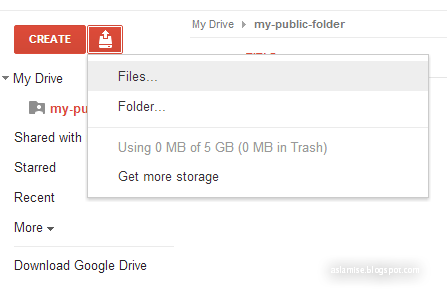
8 Click on the drive icon next to the 'CREATE' . then select file if you want upload just a test file. Or a folder to upload a set of files inside a folder. Here i upload just a single file named index.html So i click on file - then select index.html

9 After completing upload, right click on the uploaded file and click on share button and change permission to 'anyone can view'.


10 Now you need the String which we need to copy . In above figure, yellow selection is the unique string. copy that. Open a new window on your browser,
and type
https://googledrive.com/host/UNIQUE-STRING-GOES-HERE/
Replace UNIQUE-STRING-GOES-HERE with that string you copied before.
Thats it !
If you completed these steps, you just hosted a web page in your 5GB google drive!