Here is how you can replace blogger comments with Facebook Comments in blogger blogspot.
Before Proceed further, please note that
If you use Facebook comments instead of blogger comments,
- You will not get email notifications when someone comment on your post.
- You will not be able to track spam messages in comments with blogger service.
- Comments you will receive, will not be added to your blog's comments section, but only in Facebook's iframe.
Still,If you want to use this, here we go.
First Step:
First step is to make an app in Facebook.
You should be an app developer to use Facebook comments in your website or blog or wherever you want.
To create a facebook app,
Go to below address.
https://developers.facebook.com/apps
If you are not yet a developer, register for a developer account.
Click on the button named "Create New app"
It will pop up a box. type your app name there. whatever it is. you can also name it as your blogs name.
Click next button, it will ask you to type captcha as Facebook requires that to prevent spamming.
Your app will be created and you will be taken to a new page where you can see basic settings of your app.
Display name will be the same name you typed.
Now , type blogspot.com,blogspot.[your country specified domain extension. example:if you are in India it will be blogspot.in].
You can complete the domain name list with country specified domain extensions as possible.
Next, you can see a field named sandbox mode.
If Sandbox mode enabled, only developers can use the app. so disable sandbox mode. for that check the radio button named "disabled"
Now, come down and click on website with Facebook login, and fill it with http://yourblogname.blogspot.com
Mine will be http://aslamise.blogspot.com
Now click on save
You have just made your Facebook app to use Facebook's plugins.
Second Step:
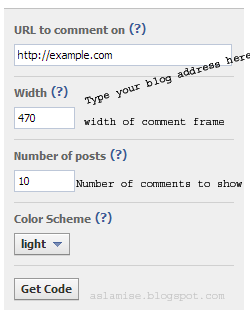
Get code for Facebook Comments
Go to
http://developers.facebook.com/docs/reference/plugins/comments/
Grab your code from there.
<div id="fb-root"></div>

<script>(function(d, s, id) {

  var js, fjs = d.getElementsByTagName(s)[0];

  if (d.getElementById(id)) return;

  js = d.createElement(s); js.id = id;

  js.src = "//connect.facebook.net/en_US/all.js#xfbml=1&appId=YOUR_APP_ID";

  fjs.parentNode.insertBefore(js, fjs);

}(document, 'script', 'facebook-jssdk'));</script>
You have to XML encode code between script blocks to get it work on blogger,else it will show an error.
After XML encoded ,It will look like below.
<div id="fb-root"></div>
<script>
(function(d, s, id) {
var js, fjs = d.getElementsByTagName(s)[0];
if (d.getElementById(id)) return;
js = d.createElement(s); js.id = id;
js.src = "//connect.facebook.net/en_US/all.js#xfbml=1&appId=YOUR_APP_ID";
fjs.parentNode.insertBefore(js, fjs);
}(document, 'script', 'facebook-jssdk'));
</script>
Save your template for now.
Now click Ctrl+F and search
<b:includable id='postQuickEdit' var='post'>
Just before that you can see
</b:includable>.
Now lets call our comment plugin here.
So Copy paste this just before that </b:includable>.
<b:if cond='data:blog.pageType == "item"'>
<div class='fb-comments' data-num-posts='20' data-width='610px' expr:data-href='data:blog.canonicalUrl'/>
</b:if>
Change the width of comment box as per your template's width.
Add <meta content='YOUR-FACEBOOK-ID' property='fb:admins'/> between your <head></head> tags. So we can moderate comments in our blog.
We have just enabled Facebook comments plugin in your blog.
Now, the last step.
we have to
hide the real blogger comments plugin from our blog.
for that, go to your blog's dashboard.
Settings -> Posts and comments ->
Under Comments Section, you can see an option named
Comments Location
Select
Hide.
Note: Selecting Hide does not delete existing comments.
Then click save settings.
You have just replaced your blog's default comment system with Facebook's comment system.
Feel free to ask if you are experiencing any problem with the process. your comments are always welcome :)